
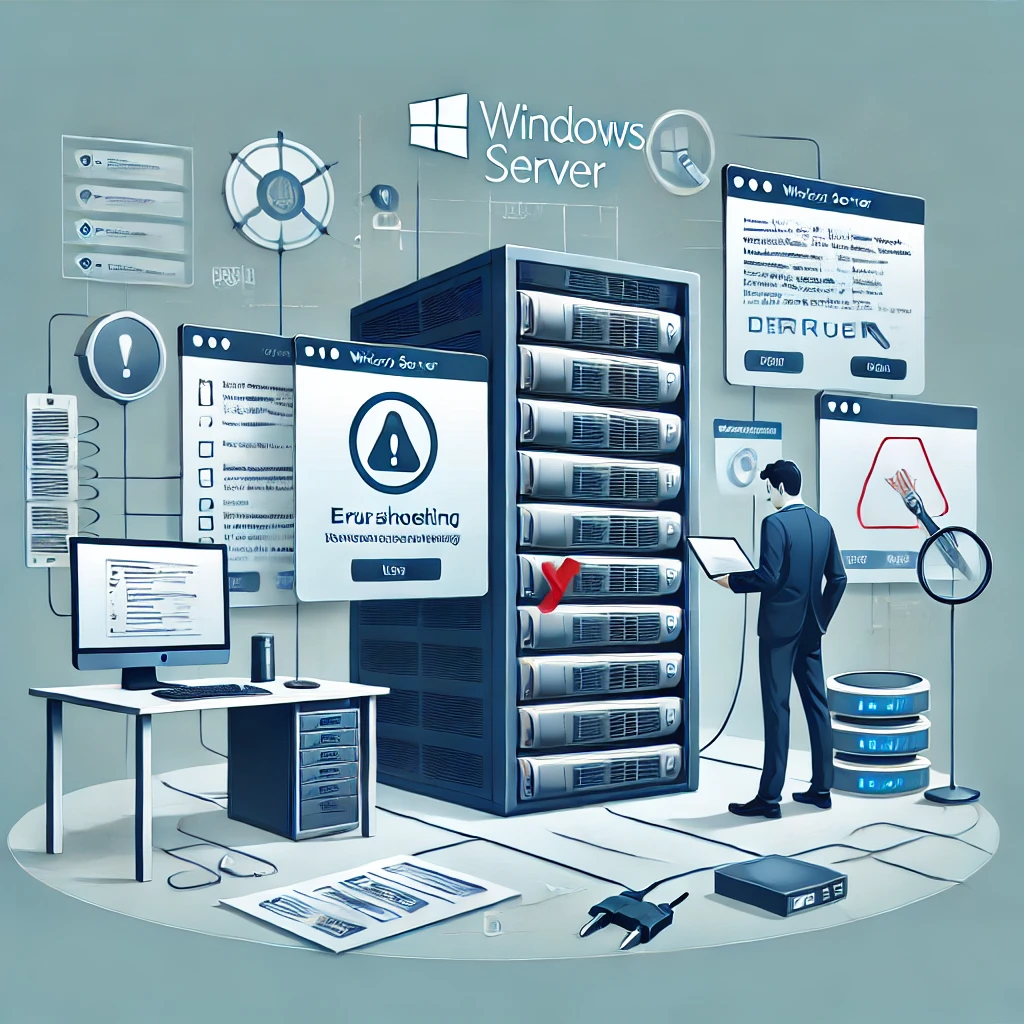
“The server is down” can mean several different things: a website returns an error, Remote Desktop cannot connect, a file share is slow, or the operating system has restarted. Before changing a setting, identify which operation fails and whether the failure affects one client or everyone.
This checklist is a starting point for supported Windows Server installations. Run diagnostic commands from an authorised administrative session when permissions require it. GUI tools may be unavailable on Server Core; use PowerShell or an approved remote management console there.
Write down the incident before restarting anything
Record the first failure time, time zone, affected hostname and exact error. Ask what changed recently: a deployment, certificate, update, backup job or network policy. Note whether another service on the same machine still works. A healthy file share alongside a failed website points to a different investigation than an unreachable console.
Keep the hypervisor or out-of-band console available before making changes to networking or remote access. Restarting first can erase the transient evidence that would explain why the problem occurred.
Read a bounded slice of the event log
$incidentStart = (Get-Date).AddHours(-2)
Get-WinEvent -FilterHashtable @{
    LogName = 'System'
    StartTime = $incidentStart
    Level = 1,2,3
} -MaxEvents 50 |
    Select-Object TimeCreated, Id, ProviderName, LevelDisplayName, Message
This returns up to 50 recent critical, error and warning events. Repeat with LogName = 'Application' for application-related events. No matching events is a possible result, not proof that the server is healthy. Get-WinEvent’s filtering documentation explains the filter fields.
Correlate events with the incident time. A service-stop message may be a consequence of a restart, while an earlier storage or application error may be the useful lead. An unexpected-shutdown event alone does not identify the original cause.
Check the component that serves the failed operation
Use Get-Service to inspect the expected service rather than treating every stopped service as a fault. Some services start only when needed. For a web application, also inspect its application logs and worker state; a running Windows service does not guarantee a healthy application.
For an RDP failure, check the approved access path, configured listener port and relevant policy. Do not assume opening the default port to the whole internet is the fix. Microsoft's RDP troubleshooting guide separates connection, DNS and server-side checks.
Choose the next investigation from the evidence
- High CPU or memory pressure: identify the process and collect samples during the slowdown.
- Storage errors or delayed reads: inspect volume capacity and latency alongside storage-platform health.
- Hostname or port failure: test DNS resolution separately from TCP connectivity.
- Update failure or a crash: preserve the error code, update details and any existing crash dump before planning recovery.
- Domain logon problems: investigate domain DNS and authentication events before attempting directory repairs.
Make one targeted change with an owner and a reversal plan. Verify recovery using the original failed operation from an affected client, then record the result. A restarted service or a green dashboard is not enough if the user's request still fails.
Related Articles


SSH Access Issues and Solutions
Comments (0)
Leave a Comment
Sponsors



Apps